
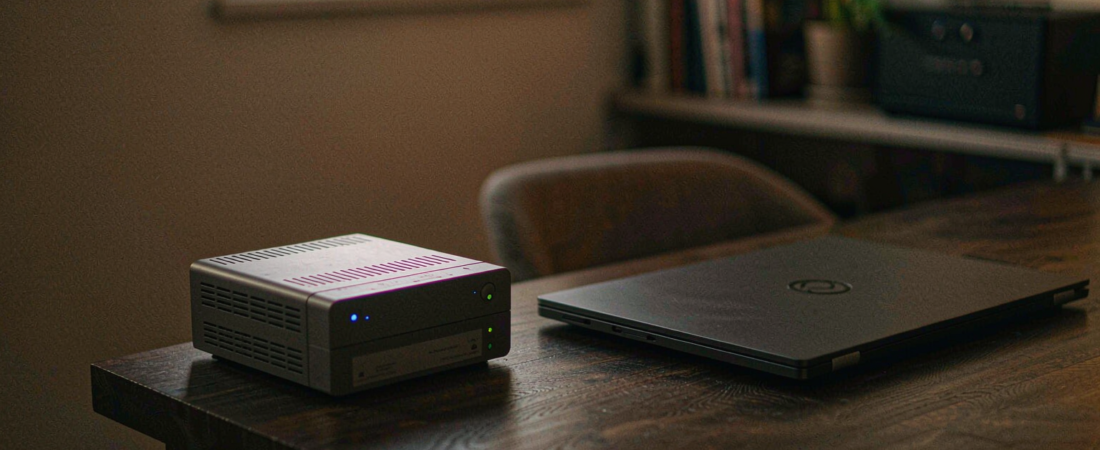
Can Ransomware Wipe a NAS Backup?
Key Takeaways
- Yes, it can. A NAS with ransomware protection is a set of settings rather than a shield, and a share mapped to a desktop is only as safe as that desktop.
- RAID survives a dead disk, not an encrypted one. Mirroring copies the ciphertext to both bays in the same second.
- Snapshots with a retention window are the difference between restoring files and paying. Versioning, not redundancy, is the control that matters.
- Sizing arithmetic: one 4K stream at 8 Megabit per second writes about 84 Gigabyte a day. Four cameras plus a two-week window lands in the four-to-eight Terabyte range, not in the 1 Terabyte one.
The Short Answer
Ransomware cannot re-encrypt a snapshot that was already closed and locked. That single property is what you are buying.
So the working recipe is three settings, not a product category:
- Give the NAS its own administrator account. Never reuse a desktop login.
- Keep a second copy on a target that is not mounted all day. Connect it, let the job finish, disconnect it.
- Turn on snapshots with a retention window of fourteen days as a starting point, then adjust it against how long it takes you to notice a problem.
If you only do one of the three, do the snapshots. The other two protect the door. Snapshots protect the files after the door is already open.
Why does the answer sound like “maybe”?
Two camps are selling two different things, and both of them are right about their own half of the problem.
The storage camp points at redundancy: two drives, four bays, a rebuild that takes hours and loses nothing. That is real. It is also irrelevant once the data itself is rewritten with a valid, working encryption key. A rebuilt array rebuilds the encrypted files perfectly.
The security camp points at hardening: separate accounts, disabled default logins, patched firmware, no exposed management port. Also real, and also not enough on its own — a single successful phishing attachment on one workstation is all it takes to reach a share that machine can write to.
Redundancy keeps a system alive. Versioning keeps data recoverable. Buyers keep shopping for the first and assuming they bought the second.
How does ransomware actually reach a NAS share?
Through the same path your own backup software uses. Three routes cover almost every case I have seen described in incident write-ups:
- Mapped drive. The NAS appears as drive Z: on a workstation. Whatever runs on that workstation writes to Z: with the user’s rights.
- Saved credentials in a sync client. The client keeps a token or a password on disk. Malware reads it and reuses the session.
- Exposed management interface. The admin page is reachable from the internet. Attackers do not need a user at all; they log in or walk through a flaw in the login module, which is exactly what happened in the Tapo authentication-bypass case recorded as CVE-2026-15315 and scored 8.8 by NIST (NVD entry).
Routes one and two need a human mistake. Route three needs only an open port.
What does “immutable” mean on a NAS?
An immutable snapshot is a frozen, read-only copy of a volume at a point in time. It is created by the file system, not by your backup software, and the write protection is enforced by the storage layer rather than by a password prompt.
That distinction matters more than any feature list. A folder with “deny delete” permissions can be unlocked by whoever holds the admin account. A snapshot inside its retention window cannot be deleted early, by you or by anything running with your credentials.
This is also why versioning beats mirroring for this threat. You are not trying to keep the array online. You are trying to keep one earlier copy that the current session cannot reach.
What I looked at, and what I did not test
This article is built from the product specification sheets for our storage hardware, the public CVE records linked above, and the standard snapshot behaviour documented for the drives and file systems involved. I have not run a ransomware sample against a live array, and I am not going to pretend otherwise — a controlled detonation in a lab is a real research project, and I do not have one to show you.
What I can stand behind is the arithmetic and the mechanics: where a snapshot lives, who can delete it, and what happens to a RAID rebuild when the files it is rebuilding are already encrypted.
Related solution
woCyber Local Backup NAS
Snapshots, immutable copies and a second local target – so an encrypted file never turns into a deleted file.
Learn More → Backup Built to Survive Ransomware · Get a Quote
Which layer actually stops the encryption?
Layers are not equal. Ranked by what they prevent, with the cost each one adds:
| Layer | What it stops | What it does not stop | Added cost |
|---|---|---|---|
| Separate NAS admin account | Reuse of a workstation login | Malware already running on the workstation | None — configuration only |
| Firewall the management port | Direct login from the internet | Anything arriving from inside the LAN | None — router setting |
| Snapshots, fourteen-day window | Deletion and encryption of live data | Loss of data created inside the window | A slice of raw capacity for changed blocks |
| Offline second copy | Everything above, including a compromised admin account | Nothing — it is the backstop | A second target plus a manual routine |
The first two rows are free and they are the two that most small setups skip. The last row is the one that survives an attacker holding your administrator password — which is why it belongs in the plan even though it is the least convenient.
How much storage does a defensible setup need?
Do the arithmetic on your own cameras rather than copying a number from a listicle. The formula is short:
Megabit per second ÷ 8 = Megabyte per second. Multiply by 86,400 seconds for a day.
At 8 Megabit per second — confirm the real figure in your camera settings — that is one Megabyte per second, or about 86,400 Megabyte a day, which is roughly 84 Gigabyte. Four cameras at that rate write about 337 Gigabyte a day, or about 4.7 Terabyte across a fourteen-day window.
Add the snapshot overhead for changed blocks, add your documents and phone photos, and the practical landing zone is a two-bay unit with two 8 Terabyte drives, or a four-bay unit if you want room to grow without a migration. Two 8 Terabyte drives in a mirror gives you 8 Terabyte usable; a four-bay box lets you trade some redundancy for capacity later.
Working on a smaller budget? A pair of recertified drives changes the entry price far more than a cheaper enclosure does, and recertified enterprise drives are worth reading about before you buy the enclosure at all. A four-bay enclosure only makes sense if you already know you will outgrow 8 Terabyte within a year; otherwise the money belongs in the second backup target. Buying cameras and storage together? The NAS Security Kit pairs the camera line with local storage, which keeps the configuration questions in one conversation.
How do you set it up without breaking the nightly job?
- Create the storage admin account first. A dedicated name, a unique password, and no reuse anywhere else. Do this before any share exists.
- Decide which accounts get write access to each share. Camera footage should be write-once from the camera. Documents should be writable by the people who edit them, and nothing else should be.
- Enable scheduled snapshots on the volumes that hold irreplaceable data. A rolling window of fourteen days is a defensible default; move it to thirty if you only open the backup logs monthly.
- Set up the second target and mount it on a timer, not permanently. A script that mounts, syncs and unmounts is boring, and boring is the point.
- Test one restore. Pull a single deleted file out of a snapshot and open it. An untested snapshot is a rumour.
If you run a private cloud you actually own, the same rules apply to it — the personal cloud setup guide covers the account and access side in more detail.
Where does this setup quietly fail?
Three failure modes come up again and again:
- The snapshot window is longer than the attacker’s dwell time. If encryption ran eleven days ago and your window is seven days, you have already lost the clean copy.
- The second target lives in the same room. Fire, theft and a spilled coffee take out both copies at once, and so does a single power event on a shared circuit.
- Everyone uses the admin account. Convenience erases the separation you built in step one, one shared password at a time.
The first one is a settings bug, and it is the one I would fix today. Sit down with a calendar, estimate how long a problem would go unnoticed, and set the retention window above that number. Two weeks is a starting point, not a standard.
What would I buy, and what would I skip?
I would spend on the second target before I spent on the enclosure. A two-bay unit with an honest offline copy beats a four-bay unit with every drive mounted all day, and it costs less to run.
The counter-intuitive part: a bigger, faster array does not make you safer against this threat. It makes the encrypted dataset larger and the rebuild slower. If your drives are older than eight years and the array is your only copy, do not buy more capacity — put the money into a separate backup target and a documented restore routine.
And if you are running a single-bay box with an external drive on the same desk, treat it as one copy, not two. That is the setup I would stop using this week.
What We Don’t Know
Retention windows are workload-specific, and the honest answer is that yours depends on how quickly a problem surfaces in your business — a number I cannot measure from here. If a fourteen-day window feels arbitrary, use this correction: set the window to your detection time plus seven days, and review it after the first real restore attempt.
We also cannot tell you how a specific attacker will behave against your specific network. Anyone who gives you a fixed success rate for a defence is guessing.
FAQ
Is a NAS with ransomware protection worth it compared with cloud storage?
It depends on which cost you are avoiding. A cloud plan keeps billing for as long as you keep the data, and the provider holds the keys and the account. Local storage removes the subscription and the third-party account, then hands the backup discipline back to you. If you will not maintain an offline copy, a provider will do that part better than you will.
Does RAID protect against ransomware?
No. RAID protects against a drive failing. Ransomware rewrites the data that RAID is faithfully duplicating, so a mirror copies the encrypted version to both bays. RAID is an availability feature, not a recovery feature.
How much does a NAS with ransomware protection cost over three years?
The hardware is a one-time purchase; the running cost is electricity plus drive replacement. Against a cloud plan, the comparison is straightforward arithmetic: no monthly line item, no per-camera fee, no renewal. We quote hardware against your actual configuration rather than publishing a list — send the camera count and retention window and you get a number within 24 hours.
What do I need before I start?
A NAS with at least two bays, two drives, a second backup target that can be disconnected, and about an hour to create accounts and enable snapshots. The storage layer is the easy part. The account discipline is the part that gets skipped.
What are the common mistakes when setting up NAS backup?
Mapping the share to every desktop, reusing an admin password, leaving the management interface exposed, and never testing a restore. All four are configuration choices, and all four are reversible in an afternoon.
What to do next
Open your NAS admin page and check two things: which accounts can write to the volume holding your irreplaceable files, and whether snapshots are enabled with a retention window longer than your detection time. Those two answers tell you where you stand.
If you want the configuration sized against your camera count and retention window, send us the numbers. We build local storage that runs without a monthly plan, and we will tell you when a smaller setup is the better buy.
Need a Backup That Survives a Ransomware Attack?
Tell us what you cannot afford to lose and we will size the local storage, the snapshot schedule and the second copy.
- Local and offline backup targets
- Immutable snapshot configuration
- Backup sizing for camera and file data
- Business & commercial applications
A typical cloud plan keeps billing: monthly fees stack up for as long as you keep the cameras.
woCyber records on your own hardware with zero monthly fees — one purchase, no plan, no renewal, no price hikes.
✓ What we will never do: no subscription lock-in, no footage uploaded to our servers, no selling your data — your recordings stay on hardware you own.