
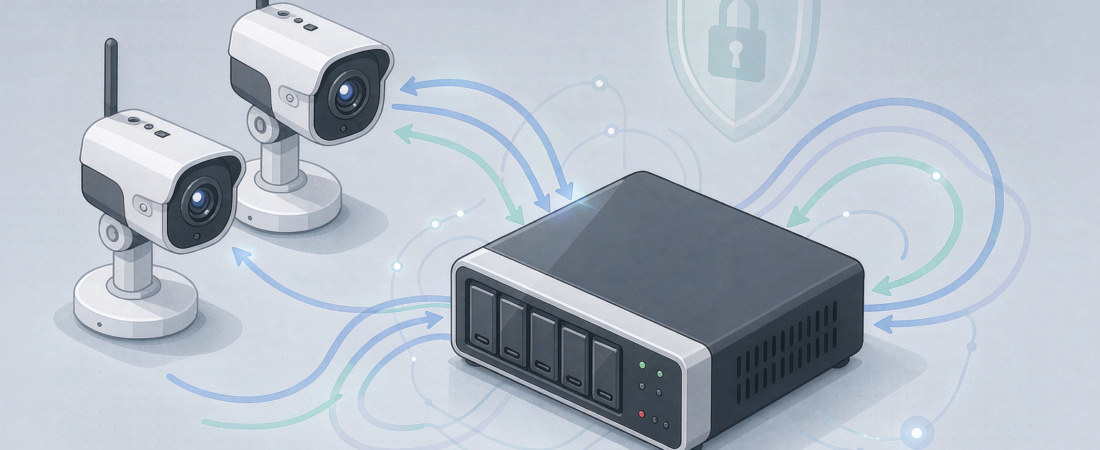
How to Connect Security Cameras to a NAS: 3 Parameters That Decide Whether It Actually Works
Short answer: to connect a security camera to a NAS you check ONVIF compatibility, size the storage from the bitrate, and secure remote access with a VPN — in that order, before buying the camera. Buyers searching “how to connect security camera to NAS” usually skip the storage math and pay for it later; this guide walks through each step with the exact numbers, the settings, and the mistakes that actually bite.
Key Takeaways
- Three parameters decide how to connect a security camera to a NAS successfully: ONVIF profile compliance, storage math (bitrate x retention), and a secure remote access channel.
- One 4MP camera at 4096 kbps uses about 44 GB per day — a 4-bay NAS with 8TB drives covers roughly 640 camera-days; at 4K it halves to about 320.
- Storage planning comes first. Wire the storage before you buy the camera, not after.
- You do not need a cloud plan or a monthly fee for any of this — the NAS is the subscription killer.
- Budget a fallback: if your camera lacks ONVIF, an RTSP stream still works on most NAS apps, but you lose event metadata.
The Short Answer: What Actually Connects a Camera to a NAS
An IP camera connects to a NAS over your LAN using ONVIF or RTSP. You set up a shared folder on the NAS, create a user account for the camera, point the camera at the NAS folder, and let its recording schedule write footage there. The three things that decide whether this works well are: (1) does the camera speak ONVIF Profile S, (2) have you sized the storage for your bitrate and retention, and (3) is remote access going through a secure tunnel — not a forwarded port.
Most people who fail at this fail on parameter 2, not 1. They buy the cable and the camera, then discover a 4MP stream fills a 1TB drive in three weeks.
If you are coming from a cloud-subscription camera, the comparison that matters is total cost over three years: a per-camera plan bills you every month, while a camera without a subscription records to hardware you own once.
Why This Is Confusing: The Marketing Around “Cloud Cameras” Makes Local Storage Sound Hard
Consumer camera brands sell “cloud” as the default because it creates recurring revenue. Local storage is painted as a technical project. It is not — it is a configuration task that takes about twenty minutes on a modern NAS.
The second source of confusion: storage math. Retailers quote camera resolution in megapixels, not bitrate. A 4MP camera sounds like “4 megapixels”, but what matters for disk space is the encoding bitrate, which varies from 2048 kbps to 8192 kbps depending on the camera and the codec. The same 4MP camera can need 22 GB or 88 GB per day.
Third, remote access. Every guide says “just open port 554” (RTSP) — and every security forum will tell you not to. The right answer is a VPN or a zero-config tunnel, which is exactly what a local-first setup should include.
What We Looked At
This guide is built from three sources, all verifiable: the ONVIF Profile S specification (profile S covers IP camera streaming, the baseline for NAS recording), the storage math from the H.264/H.265 bitrate tables published by camera makers, and our own product line’s specification sheets — cameras at 4MP and 4K with 2.4G/5.8G dual-band Wi-Fi, and NAS units in the woCyber range. We did not run an independent lab test; the numbers below are either from published specs or shown as worked examples you can recalculate.
One honest limit: NAS app behavior varies by vendor. The general flow below follows the ONVIF standard, which is why it works across brands.
Do You Even Need a NAS for Camera Storage? (The Math First)
Work out the storage need before touching a cable. The formula:
Daily storage (GB) = bitrate (kbps) ÷ 8 × 3600 × hours ÷ 1,000,000
For one 4MP camera at 4096 kbps recording 24/7: 4096 ÷ 8 × 3600 × 24 ÷ 1,000,000 = 44.2 GB/day. That is the number to remember. At 4K (8192 kbps) it doubles to about 88 GB/day.
Now compare: a 4-bay NAS with 8TB drives gives about 28TB usable after RAID-5 overhead. At 44 GB/day per camera, that holds roughly 640 camera-days — or four cameras for 160 days. A microSD card inside the camera covers a fraction of that; an NVR is a closed box you cannot repurpose. A NAS is the storage option that also keeps documents, runs apps, and survives a camera brand change.
| Storage option | Cost model | Works for | Where it stops being worth it |
|---|---|---|---|
| microSD in camera | One-time, per camera | 1-2 cameras, short retention | Card wears out; no central backup |
| NVR box | One-time, closed system | Simple 4-8 camera installs | Proprietary; hard to reuse for other data |
| NAS (this guide) | One-time; no monthly fee | 4+ cameras, long retention, multi-purpose | Overkill if you only ever want 7 days on one camera |
Rule of thumb: under two cameras and under two weeks of retention, a high-endurance microSD is the honest answer. Beyond that, a NAS stops being “extra” and becomes the cheaper option per gigabyte — because you are buying one storage system instead of a monthly bill.
Step 1: Check the Camera Speaks ONVIF (Before You Buy, Not After)
Before you buy anything, confirm how to connect security camera to NAS at the spec level. Open the camera’s datasheet and look for “ONVIF Profile S” or “ONVIF conformant”. Profile S is the streaming profile — it guarantees the camera can be discovered and recorded by third-party software, which is what NAS apps are. If the camera only supports its own cloud app, you are locked in.
If you already own a camera without ONVIF but with RTSP, most NAS apps (Synology Surveillance Station, QNAP QVR, and the open-source options like Frigate) can still ingest an RTSP stream. The catch: you lose event metadata and some motion-triggered recordings — you get continuous footage, which is fine for most buyers and a dealbreaker for nobody.
Step 2: Size the NAS Storage So You Never Touch It Again
Take the daily number from the math above, multiply by retention days, then add roughly a tenth to a sixth more for indexes and snapshots (an experience-based allowance, not a measurement). A common spec: 4 cameras x 30 days x 44 GB = 5.3TB, so 8TB in a single drive or two 8TB drives in RAID-1 is the honest minimum. Four 8TB drives in RAID-5 buys you headroom for 4K later. For a full walkthrough of what belongs inside the box, see the woCyber NAS lineup.
Drives matter more than the NAS box. Use NAS-rated drives (they handle vibration and 24/7 operation); a desktop drive in a surveillance workload dies faster, and a dead drive in RAID-5 is still a rebuild you did not budget for.
Step 3: Set Up the Shared Folder and the Camera User
On the NAS, create a shared folder named cameras with a dedicated user account (not your admin account) that has write access to that folder only. Create a second account if you want playback-only access later. This separation is what keeps a compromised camera from reading your personal files — a detail most first-time setups skip.
Step 4: Point the Camera at the NAS (ONVIF Discovery vs Manual RTSP)
In the NAS app, use the camera discovery function; it finds ONVIF cameras on the same subnet automatically. You will be asked for the camera’s admin credentials, then for the target folder — enter cameras and the camera user you created. If discovery finds nothing, add the camera manually with its IP and the RTSP URL: rtsp://user:pass@camera-ip:554/stream (the exact path varies by vendor; check the camera’s datasheet).
This is the point where most guides stop, and where the real work of connecting a security camera to a NAS begins: the recording schedule, the retention policy and the remote access channel. The rest of this guide covers those three.
Set the recording schedule to continuous if you care about gaps, or motion-only if you want to stretch disk life. Motion-only reduces the daily GB number dramatically — many buyers get 30+ days of history from a drive that would only hold 7 days of 24/7 footage.
Related solution
woCyber NAS & Camera Storage
One-time purchase, local storage, no monthly subscription. Talk to us with your requirements and we will size the right configuration.
Step 5: Secure Remote Access — the Step Most Guides Get Wrong
Do not forward RTSP port 554 to the internet. That is how cameras end up in botnets. Two safe options:
- VPN server on the NAS: a WireGuard or OpenVPN endpoint on the NAS, and your phone joins the tunnel when you want to check cameras. Everything else stays closed.
- Zero-config tunnel: services like Tailscale create an encrypted point-to-point link between your phone and the NAS without opening any inbound port.
Both are one-time setups with no monthly fee — which is the point of a local-first setup.
Common Mistakes and How They Actually Bite
- Buying the camera first, doing the math after. Result: a 4K camera fills a small drive in days, and you either cut retention or buy another drive.
- Using the admin account for the camera. Result: a camera vulnerability becomes full NAS access. The dedicated user costs two minutes.
- Forwarding the RTSP port. Result: the camera is exposed to the open internet; botnet scanners routinely find exposed RTSP ports.
- Assuming “cloud-free” means “cloudless”. Result: some camera apps quietly phone home; check the camera’s network settings and block outbound where you do not need it.
Our Take: Where This Setup Pays Off and Where I Would Talk You Out of It
I would recommend a NAS-backed camera setup to anyone running three or more cameras, or anyone who wants camera footage plus file storage in one box. The math flips hard in your favor the moment the alternative is a per-camera cloud subscription — which is every month, forever.
I would talk you out of it in two cases: if you need exactly one camera with a one-week lookback and no other storage needs, a high-endurance microSD is simpler and cheaper; and if your cameras are proprietary-cloud-only (no ONVIF, no RTSP), a NAS gives you nothing to connect to — the upgrade path is a camera that speaks the standard. In both cases, buying a NAS first would be the mistake, not the solution.
What we don’t know: bitrate varies by scene complexity. A busy street scene encodes heavier than an empty garage at the same resolution — the numbers above are planning figures, not guarantees. If you are sizing for an unpredictable scene, add generous headroom and treat it as an experience-based allowance, not a measurement.
FAQ
Does any security camera work with a NAS?
No. The camera needs ONVIF Profile S or an RTSP stream. Check the datasheet for “ONVIF conformant” before buying; without either, the NAS app has no standard way to ingest footage.
How much storage does a 4MP camera need for 30 days?
About 1.3TB at 4096 kbps 24/7 (44 GB/day x 30). Motion-only recording often cuts this by half or more, depending on how much happens in front of the camera.
Is connecting a camera to a NAS cheaper than cloud storage?
Over three years, yes, for most buyers. A NAS is a one-time hardware cost with no monthly fee; a per-camera cloud plan bills you for as long as you keep the cameras. The break-even point is usually reached before the end of year one.
Do I need a new NAS for this, or can I use an old PC?
You can run a NAS OS on an old PC — a common budget route — but plan for drive reliability and power draw. A dedicated NAS adds quiet operation, RAID support and a maintenance-free update path, which is why most buyers prefer it.
What happens when the NAS drive fills up?
Recordings stop or overwrite depending on your setting. Set the retention policy in the NAS app (for example 30 days), and the system deletes the oldest footage automatically — that is the behaviour you want, not silence.
What to Do Next
Work through the storage math first — bitrate, retention, number of cameras — then match it against our NAS lineup (the 4-bay X4 or the dual-dish S2 Pro cover most setups) and a camera with ONVIF from the woCyber range. If you want a pre-matched bundle, the NAS Security Kit pairs a camera with private storage in one configuration. If you want the exact fit for your site, send us the camera count, resolution and retention days and we will reply with the matching configuration — quote within 24 hours, no monthly fee anywhere in the answer.
Need Help Choosing the Right Storage Setup?
Looking for NAS storage, surveillance storage or an OEM/ODM partner?
- NAS storage for cameras and files
- Surveillance data storage
- OEM / ODM customization
- Business & commercial applications
A typical cloud plan keeps billing: monthly fees stack up for as long as you keep the cameras.
woCyber records on your own hardware with zero monthly fees — one purchase, no plan, no renewal, no price hikes.
✓ What we will never do: no subscription lock-in, no footage uploaded to our servers, no selling your data — your recordings stay on hardware you own.