
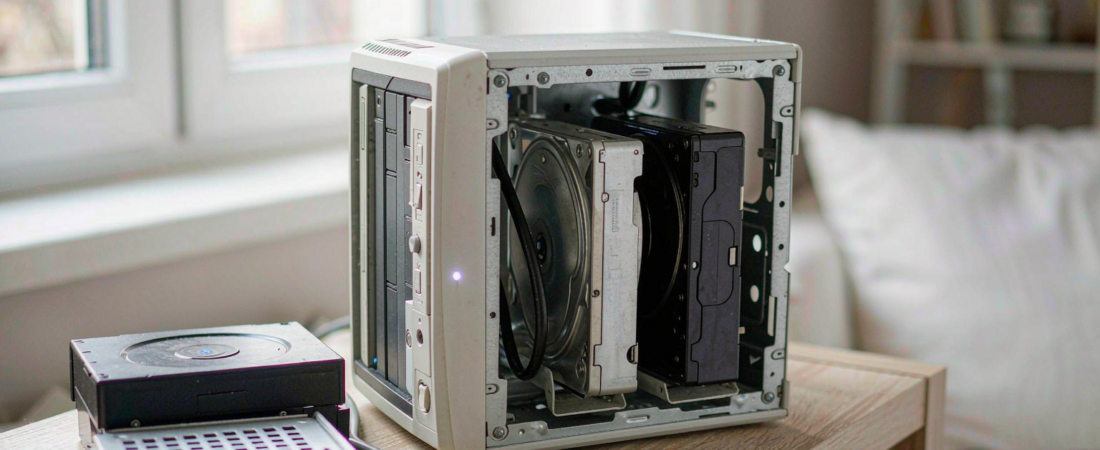
To convert an old PC to a NAS is to turn a desktop, laptop or mini PC you already own into a network file server: you install a lightweight NAS operating system, add drives, and share folders across your own network. Nothing is rented by the month and nothing is uploaded to a cloud plan. What you inherit instead is the old machine’s power draw, its noise, and its ageing parts.
The idea resurfaced this week in a widely shared write-up about reviving a fifteen-year-old HP MicroServer with OpenMediaVault, which pushed a familiar argument back to the top of storage forums: if the hardware is already sitting in the cupboard, the real cost is the drives. That argument is fair, and it is also incomplete — the number that decides whether the project was a good idea is not the purchase price, it is the running cost and the risk you take with your single copy of the files.
This guide walks through what the conversion actually involves, where old hardware stops being good enough, and how to judge whether a purpose-built appliance would have cost you less over three years.
What Does It Take to Convert Old PC to NAS in Practice?
The build itself is short. Five steps, one afternoon, and no soldering:
- Check the hardware can still boot. You need a working power supply, at least one free SATA port or drive bay, and a network port. A machine that posts, holds a link light and sees a drive is enough to start.
- Choose the NAS operating system. OpenMediaVault, TrueNAS, Unraid, CasaOS and plain Debian with Samba all do the same core job: pool drives, expose shared folders, serve them over the network. The free, Debian-based options run on remarkably modest hardware.
- Install to a small system drive. A spare solid-state drive or a USB stick holds the operating system so the bays stay free for data. Keep the data drives out of the installer entirely — you format them later, from the web interface.
- Format, share, and set permissions. Create a filesystem per drive, then shared folders, then user accounts. Enable the services you actually need, such as SMB for Windows and macOS, or NFS for media players.
- Attach it to the network and unplug the monitor. After first boot you manage everything from a browser, which is the whole point of the exercise.
None of that requires special skills. It requires patience, a browser, and the willingness to read an error message instead of reinstalling.
Is Your Old Hardware Actually Good Enough?
For file sharing and backup, almost anything from the last fifteen years clears the bar. The limits appear when you ask the machine to do real work — transcoding video, running a dozen containers, or serving footage from several cameras at once.
| What matters | Old desktop tower | Old laptop | Purpose-built NAS |
|---|---|---|---|
| Drive capacity | Usually several bays with standard connectors | One internal drive plus USB enclosures | Fixed bays, hot-swap on most models |
| Idle power draw | Highest of the three; an ageing ATX platform is rarely frugal | Moderate, and the built-in battery doubles as a short power buffer | Lowest; designed to run continuously |
| Reliability outlook | Unknown — capacitors and fans are the usual failures | Unknown, and laptop drives are the weakest link | Rated for continuous operation, with warranty |
| Effort to maintain | You own the operating system, updates and troubleshooting | Same, with awkward drive mounting on top | Vendor-supplied interface and updates |
Notice what is missing from that table: raw performance. A decade-old dual-core processor with eight gigabytes of memory streams files perfectly well, and the case study above served media from a machine that shipped in 2010. The hardware is rarely the bottleneck. The running cost and the maintenance burden are.
Related solution
woCyber — Pay Once, Own Forever
No per-camera, per-seat or per-terabyte fee. Storage you buy once keeps working without a plan attached to it.
Where a Converted PC Falls Short of a Purpose-Built NAS
The gaps are worth naming honestly, because they are the reason some people build the project, use it for a year, and then buy an appliance anyway.
- No hot-swap. Replacing a failed drive means shutting the whole machine down, which is exactly the moment you least want downtime.
- Power and noise. A tower running around the clock in a living space is audible and billable; a small appliance is neither in the same way.
- Single point of failure. Old power supplies, old drives and old fans all expire — and when your entire archive lives on that one machine, a single expiry becomes an incident.
- No support. There is nobody to call. Forums are excellent, but they are not a warranty.
That is the honest place where a purpose-built system earns its price. A NAS Security Kit pairs storage with cameras on hardware rated for continuous recording, sized for the retention window you need rather than the drives you happen to own. It is the same one-time purchase logic — pay once, own forever — with fewer variables you have to maintain yourself.
How Much Does the “Free” NAS Cost Over Three Years?
This is where the arithmetic stops being obvious, because the machine can be free while its storage cannot. Drives are the one component that reuse does not make cheaper, so the “free” NAS is only free if the drives were already sitting in the drawer. Check current pricing for the capacity you actually need before you commit, rather than assuming the box you already own makes the whole project costless.
Three costs decide the comparison:
- Drives. Today’s prices are the single largest line item in any storage project, new or reused. Buying fewer, larger drives usually beats filling every bay at once.
- Electricity. A tower that idles high and never sleeps spends more on power in three years than a frugal platform does, and the gap is not small.
- Your time. Setup is one afternoon. Maintenance is not — it is a recurring cost that only you can price.
If you already own the machine and the drives, and your storage need is modest — photo backup, a media library, a staging target — the conversion wins easily. If you are buying drives anyway, and you need continuous recording or remote access you can rely on, the appliance usually wins by the second year.
Which Route Fits Your Situation?
Use the intended job as the deciding factor, not the budget:
- Backup and media only, hardware already owned: convert the old PC. It costs almost nothing and it teaches you exactly how much storage you really use.
- You want to test whether you need a NAS at all: also convert the old PC. Spending an afternoon is a cheaper way to find out than buying hardware and discovering the answer is no.
- Cameras, continuous recording, or anything someone else depends on: buy a system sized for the load. Surveillance storage has to keep running when a disk dies at an inconvenient moment, and that is a reliability requirement rather than a performance one.
- You need more than four bays of headroom: look at a multi-bay platform such as the X4 Enterprise-Class 4-Bay, where expansion does not mean rebuilding the whole archive.
Frequently Asked Questions
Is it worth converting old PC to NAS for camera recordings?
Only for light, motion-triggered recording where occasional downtime is acceptable. Continuous recording from several cameras punishes the components that fail most often in old hardware — power supply, drives and cooling. If footage matters for security rather than convenience, run it on hardware rated for continuous operation.
How much memory does a converted NAS need?
For file sharing, four to eight gigabytes is comfortable. Add more if you plan to run virtual machines, containers or a media server with transcoding, and check the motherboard’s ceiling before buying, because old platforms often cap out early.
Can an old laptop be used as a NAS?
Yes, and it has one genuine advantage: the battery behaves like a short-term power buffer when the mains flicker. The trade-offs are limited internal storage, awkward external drive mounting, and a battery that should be removed if it has swollen.
Can a converted NAS be accessed remotely?
Yes, but treat remote access as a separate project rather than a step in the build. The usual routes are a VPN back into your own network or a tunnelled file service, and both add a component that has to stay patched. If remote access is the main reason you want a NAS at all, start from hardware with a maintained remote-access layer instead of a spare desktop.
What is the biggest risk of a DIY NAS?
Building it and assuming the job is finished. A single machine holding a single copy of your archive is not a backup, no matter how neatly it is configured. Whatever route you take, keep a second copy somewhere else.
Tired of Monthly Storage or Camera Subscription Fees?
Tell us what you pay today per month and we will quote a one-time alternative.
- No monthly subscription
- Local storage you own
- Cost comparison on request
- Business & commercial applications
✓ What we will never do: no subscription lock-in, no footage uploaded to our servers, no selling your data — your recordings stay on hardware you own.