
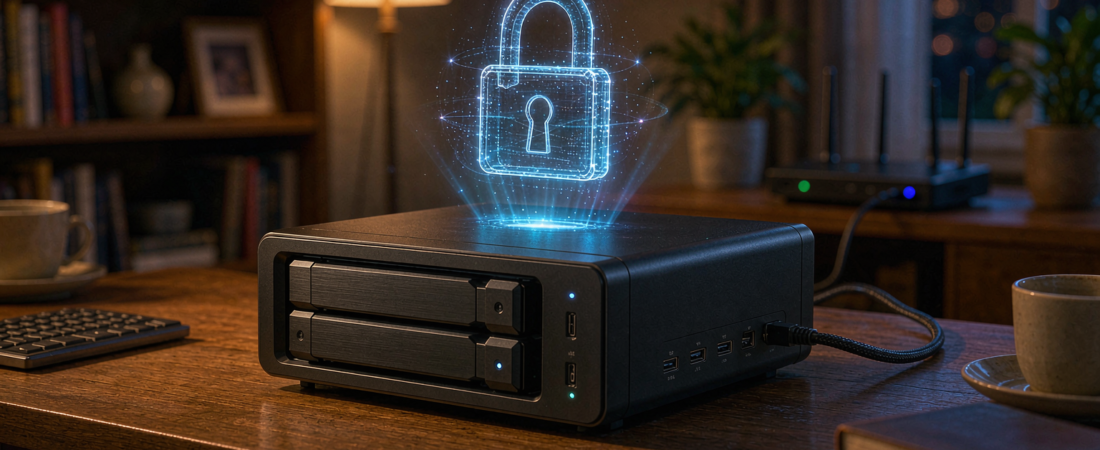
Yes — self-hosted media server security is good enough for family photos and videos when you run the server on a dedicated NAS with full-disk encryption, automatic updates, and no ports exposed to the internet. Your files stay on drives inside your home, and on a properly configured server no hosting company has routine access to scan or monetize them, while the most common break-ins happen only when people skip basic hardening. Done right, a self-hosted setup removes the cloud vendor from your private life entirely — which is exactly why so many households are switching to a home NAS as their media hub.
What Is a Self-Hosted Media Server?
A self-hosted media server is a storage device you own and operate inside your own network, running media apps that serve photos, videos, and music to your family’s phones, TVs, and laptops. Instead of uploading your library to a streaming service or a photo cloud, the server sits on a shelf at home and streams over your local network — or over an encrypted tunnel when you are away. A definition worth keeping in mind: self-hosting means you hold the keys, so in normal operation no outside service can read, mine, or monetize your files.
Most families run this on a dedicated NAS (network-attached storage) box rather than a repurposed PC, because a NAS is built to run around the clock, sleep through power cuts, and keep drives healthy for years. Models like the S2 Dual-Dish — a quiet two-bay NAS sized for family media libraries — were designed precisely for this role: quiet enough for a living room, frugal on power, and manageable from a phone app.
Is a Self-Hosted Media Server Really Secure?
Security questions usually come down to one fear: if the server is in my house, can strangers reach it? In practice, a properly configured NAS removes the public web login page that cloud accounts expose, which takes away the door attackers knock on most often. Attacks on self-hosted servers almost always exploit the same three shortcuts: forwarded router ports, reused weak passwords, and abandoned software that never gets updated. Eliminate those and the realistic attack surface becomes very small.
- Encryption at rest — modern NAS systems support full-disk encryption, so even a stolen drive is unreadable without your key.
- User isolation — each family member gets an account with access only to shared folders they need, so one compromised phone cannot see everything.
- No open doors — remote access goes through an encrypted VPN or the NAS vendor’s relay service, not through forwarded ports on your router.
- Automatic updates — the operating system and media apps patch themselves, closing vulnerabilities before they are exploited.
- Copies elsewhere — back up at least weekly to an external drive or a second NAS, so ransomware on one device is an annoyance, not a catastrophe.
If you are starting from zero, a bundled option such as a NAS security kit — a pre-configured storage bundle put together for households — takes care of most of this configuration on day one, and the step-by-step setup for a two-bay model is covered in our two-bay NAS configuration guide.
Self-Hosted Server or Cloud Service: Which Should Your Family Choose?
This is the decision that matters, so it is worth putting the two options side by side. Cloud services win on convenience and lose on control; a self-hosted server flips that trade. Here is how the honest comparison looks for a typical household:
| Aspect | Self-Hosted Media Server (NAS) | Cloud Media Service |
|---|---|---|
| Where files live | Drives inside your home, under your lock | Vendor’s data center, in a region you don’t pick |
| Who can read your data | Just you — no routine scanning or ad profiling | Terms often permit content analysis for service improvement — check each provider’s policy |
| Monthly cost | None after purchase — pay once, own forever | Recurring subscription (pricing can change at renewal) |
| Speed on your home network | Full local speed, works even when internet is down | Limited by your upload bandwidth |
| Privacy of camera footage | Stays local, on your own drives | Uploaded to third-party servers by default |
| Maintenance | You apply updates (usually automatic) | Handled by the vendor |
Zero subscription is the line that convinces most families: after the hardware is paid for, storing another decade of photos costs nothing extra. That math gets stronger every time a cloud provider raises its prices.
Related solution
woCyber Private AI NAS
Your own cloud, on your premises: files, camera footage and AI processing stay inside your network.
How Do You Harden a Self-Hosted Media Server in One Afternoon?
Most families can knock this out in a single afternoon, though the exact effort depends on your router and NAS model. It covers the essentials that block the vast majority of attacks:
- Change every default password — the admin account, the router, and any media apps — and turn on two-factor authentication where offered.
- Close your router’s ports — if a setup guide ever told you to forward a port to the NAS, undo it and use the vendor’s encrypted relay or a VPN instead.
- Enable automatic OS and app updates — an unpatched media app is the single most common way home servers get compromised.
- Turn on full-disk encryption and scheduled backups — encryption protects against theft, backups protect against everything else.
- Create separate accounts for each family member and for any smart TV or speaker, with the least access each one needs.
Run through that checklist once, and your server already covers the hardening steps most security guides recommend first.
What About Remote Access When You’re Away From Home?
This is where security-minded buyers hesitate, and rightly so — remote access is the front door. The safe pattern is to reach the NAS through an encrypted tunnel rather than exposing a login page to the whole internet. Modern NAS systems ship with one-click relays that broker the connection without opening router ports, and VPN apps on phones make direct, encrypted access painless. With either approach, someone scanning the internet sees nothing to attack, while your family streams its library from a cafe or a hotel as if it were at home.
Frequently Asked Questions
Is self-hosted media server security good enough for private family photos?
Yes, when the basics above are in place. Your photos never leave your hardware, no service scans them, and encryption plus backups cover the realistic risks of running a device at home.
Does a self-hosted media server keep working without an internet connection?
On your home network, absolutely — streaming to the TV, backing up phones, and browsing the library all work with the internet cable unplugged. Only remote access from outside naturally requires a connection.
Can self-hosted media server security protect my home security camera footage too?
It can. Many households point their cameras at the same NAS, so clips land on local drives instead of a vendor’s cloud. If that combination appeals to you, review the options on our NAS overview page and pick storage sized for your camera count.
How much should I expect to pay to run a self-hosted media server?
A typical family setup — a quiet two-bay NAS plus drives matched to your photo and video library — is a one-time hardware expense, and after that there is no monthly fee at all. That total splits into three parts: the NAS itself and its drives (the main cost), nothing recurring once the hardware is yours, and an optional backup drive as a one-time add-on if you want an off-device copy. Hardware is quoted per configuration, so send your capacity needs and you’ll receive a quote within 24 hours.
What Should You Confirm Before Requesting a Quote?
Buyers who get the right setup on the first try arrive with four answers ready:
- Library size — a rough count of photos, videos, and camera footage you want to keep, so drives can be sized correctly.
- Who needs access — how many family members and devices will stream or back up to the server.
- Camera plans — whether security camera recordings should land on the same NAS, which changes the storage math.
- Remote habits — how often you’ll stream from outside the home, which shapes the secure remote access setup.
Send those four lines through the contact form below — paste them into the message field, using whatever unit is easiest (“about two years of phone photos plus one 4K camera” works fine) — and note whether you want a standard two-bay build or a custom configuration. The recommendation you get back will already be sized and priced for your household.
Want Your Own Private Cloud Instead of Renting One?
Local storage, no vendor access, no recurring fee — tell us your capacity and compliance requirements.
- Private cloud without subscription
- GDPR-consistent local storage
- Access control and backups
- Business & commercial applications
A typical cloud plan adds up: $10–20/month is $360–$720 over 3 years.
woCyber records on your own hardware for $0/month — one purchase, no plan, no renewal, no price hikes.
✓ What we will never do: no subscription lock-in, no footage uploaded to our servers, no selling your data — your recordings stay on hardware you own.